Managing users and access
Last updated: August 27, 2026
Users, the roles they hold, and what each role can reach are all managed from Settings. This article covers adding people, changing what they can do, and removing them cleanly.
How to add a user
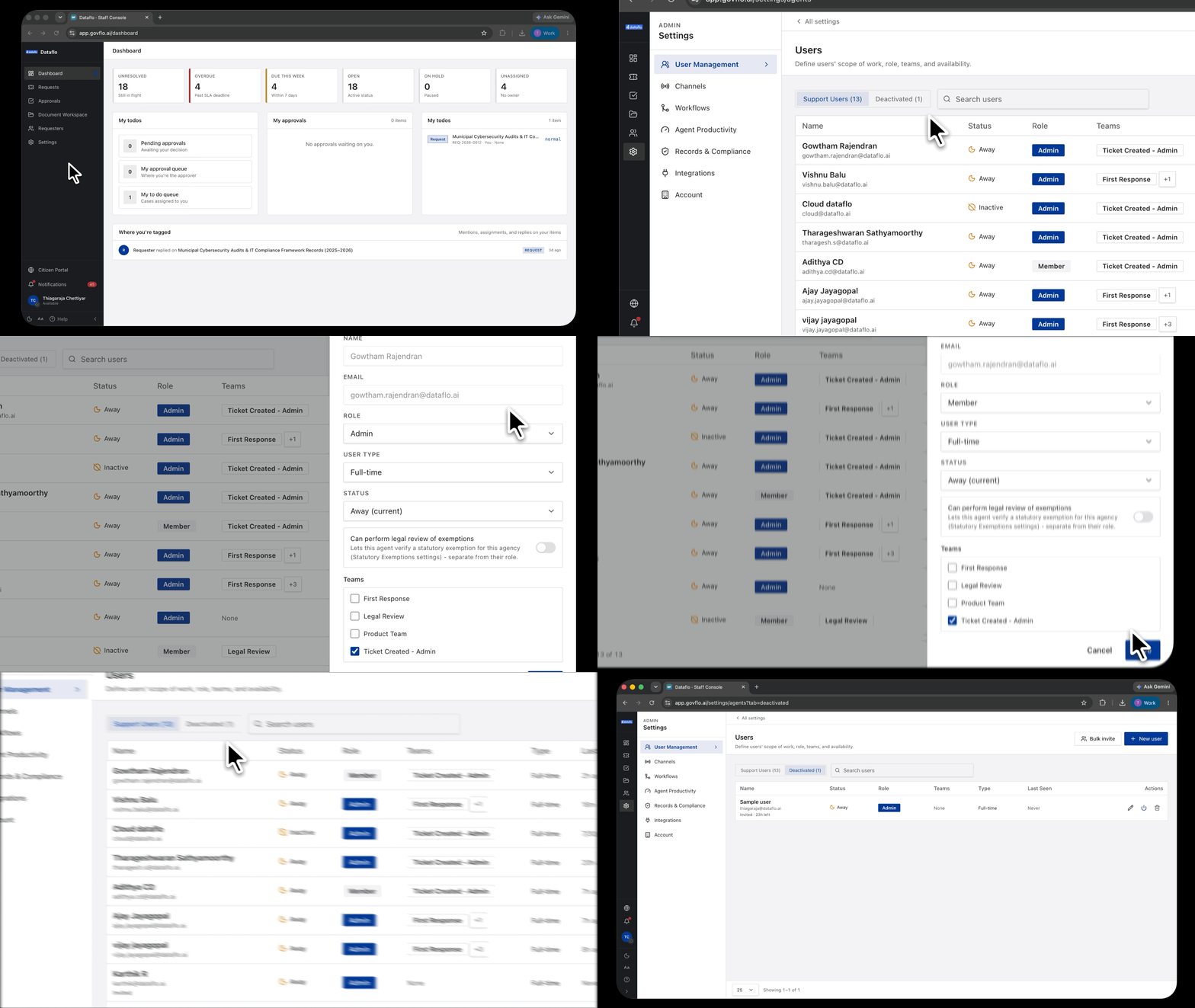
- Go to Settings, then User Management, then Users.
- Click New user.
- Enter their details and choose a Role.
- Assign a Team if your agency routes work by team.
- Send the invite. The user appears in the list as Invited until they sign in for the first time.
To bring several people in at once, use Bulk invite rather than repeating this.
What each role reaches
Roles are configured per agency, so yours may be named differently or reach different things. What the product enforces is the permission set attached to the role, not its name. The starter set is:
- Administrator. Everything a member can do, plus Settings.
- Member. The daily job: the queue, documents, requesters and approvals. No Settings.
- Approver. Reviews and signs off work before release, often with no casework permissions at all.
Changing what a role can do
Go to Settings, then Roles. Each role has a View and an Edit switch per area. Edit requires View, and changes save automatically.
Two things to know before you change anything. Changes apply to everyone holding that role, immediately. And Govflo will refuse a change that would leave nobody able to administer the agency.
Two gates, not one
Some areas need more than a role permission to appear. Analytics is the clearest example: granting the role permission is necessary but not sufficient, because the area is also gated by a tenant setting. If you have switched a permission on and the area still does not appear, that is why. Raise it with your Govflo contact rather than changing more permissions.
Removing someone
Deactivate a user rather than deleting them. Their name stays attached to everything they did, which is what keeps the audit trail readable. Deactivated users appear under the Deactivated tab.
Before deactivating someone who owns open requests, reassign their work. A request with a deactivated owner is still assigned, and it will not surface in anyone's queue.