Assign ownership and set up backup coverage
Last updated: August 21, 2026
Every request needs an owner. A request with no owner is not being worked, and its clock is running regardless.
How to assign a request
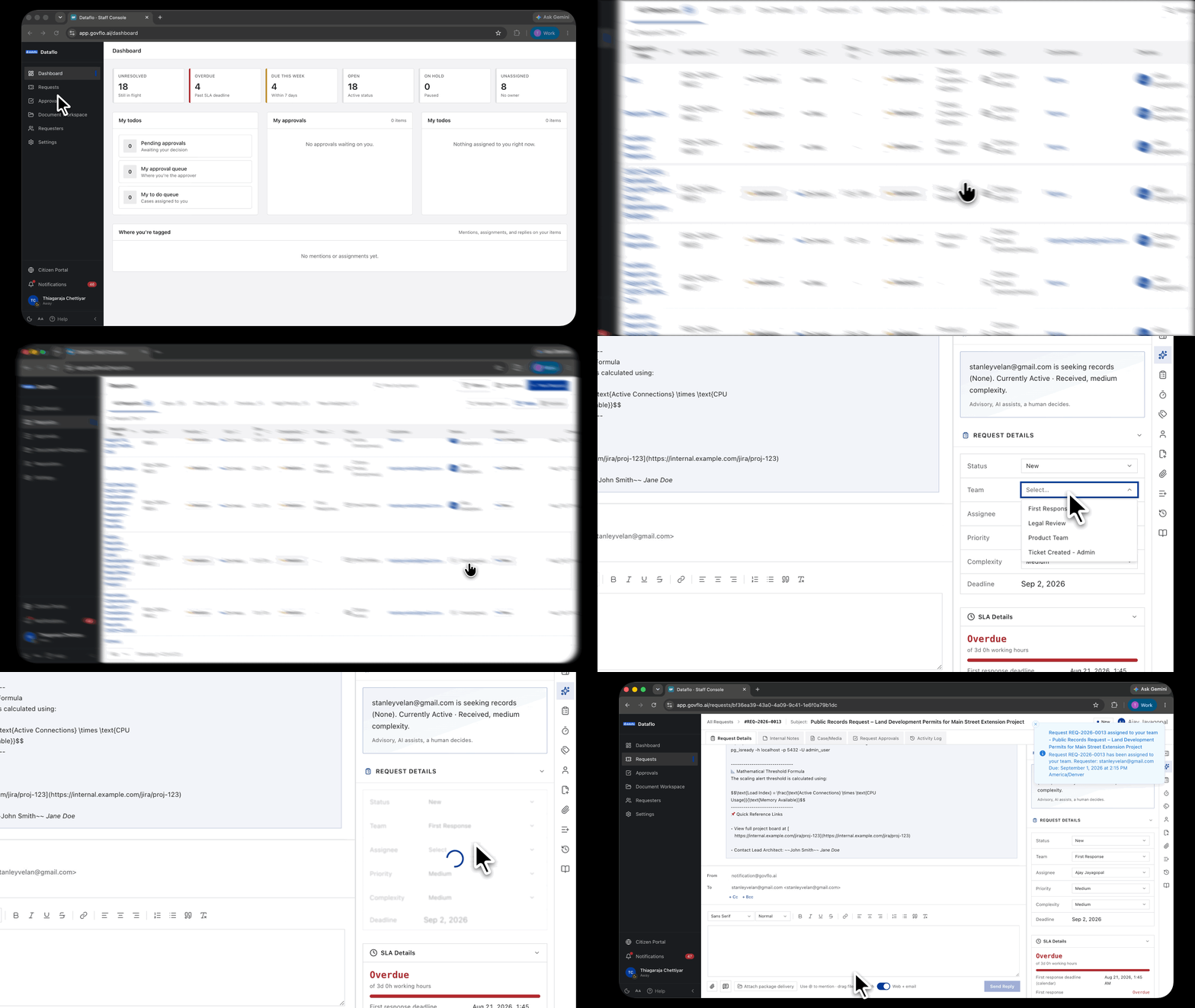
- Open the request.
- In the right rail, under Request Details, set Assignee to give it to a person.
- Or set Team to route it to a group. The team's default assignee is applied, so the request does not stay unowned.
The change saves as you make it and appears in the request's activity log.
Unassigned is the risk to watch
The Unassigned tile on the dashboard is the one to check daily. An unassigned request carries the greatest risk of a breach, because nothing puts it in front of a person.
Everything else on the dashboard represents work someone is doing. Unassigned represents work nobody is doing, on a clock that does not care.
Coverage is a handover, not a status
Setting your availability tells colleagues you are away. It does not move your work, hold your deadlines, or stop new work arriving.
Before any planned absence, reassign anything with a live deadline. Filtering the queue by owner gives you the whole set at once, and the URL of that filtered queue is a better handover note than a list of reference numbers.
Routing rules can do this automatically
Where the same kind of request always goes to the same place, an administrator can configure that under Workflow Automations rather than relying on someone remembering.
Automatic routing is worth setting up for the patterns you can name. It removes the window between arrival and assignment, which is where most overdue work is born.
Before someone leaves
Reassign their open requests before deactivating their account. A request owned by a deactivated user is still assigned to them and will not appear in anyone else's queue, which is the quietest way to lose track of a live deadline.