Using search in Govflo
Last updated: August 27, 2026
Search in Govflo is per-surface rather than global. The box on the Requests page searches requests, and the box in Document Workspace searches documents. Knowing which one you are in saves the confusion of searching for a file name in a request queue and finding nothing.
How to search
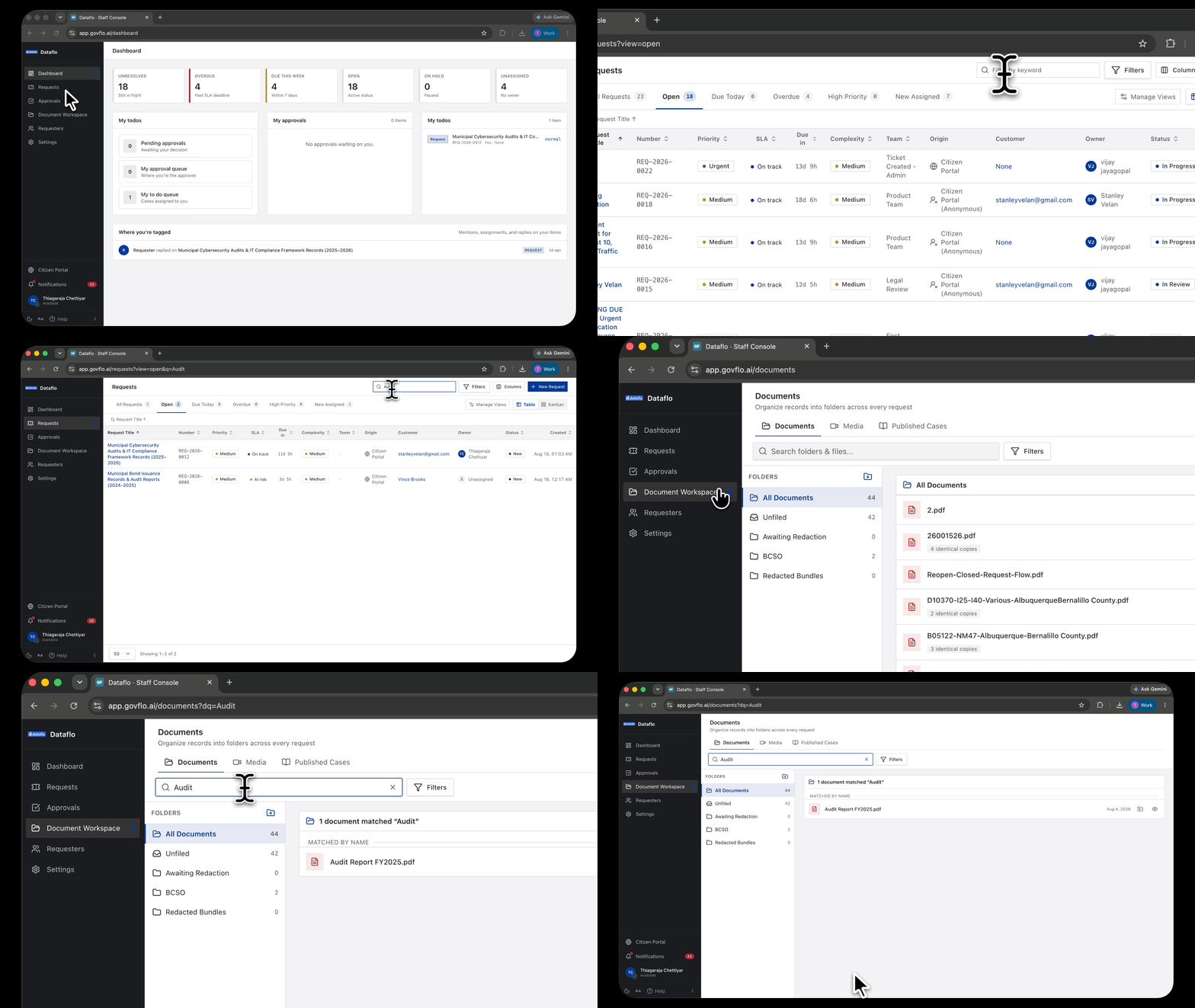
- Go to the surface you want to search: Requests or Document Workspace.
- Type into the search box at the top.
- Results narrow as you type.
- To narrow further rather than search, use Filters alongside the search box.
What each search matches
On Requests, search matches the request title and the reference number. It does not read the correspondence and it does not read the documents attached to a request.
In Document Workspace, search matches document names.
Search and filter do different jobs
Search finds a thing you can name. Filters describe a set you cannot: everything overdue, everything owned by one person, everything that arrived through the portal last month.
Most of the time the filter is the tool you want. Reach for search when you have a reference number or a distinctive title, and for filters when you are working a queue.
Because filters are written into the page URL, a filtered result can be bookmarked and shared. A search term is a quicker way to find one request, but a filter is the better way to describe a body of work.
Filters, saved views and the rest of what the Requests page does are covered in Finding your work.
Where search will not help
Searching finds records you already hold in Govflo. Finding records that live in your connected systems is a different job, done by creating a case and running discovery against a source.
If you are answering a request and the documents have not been gathered yet, search is not the tool. Create a case instead.