Finding your work
Last updated: August 21, 2026
The Requests page is where your work lives. Everything your agency has received appears here, and everything you do to a request starts from this screen. This article covers the whole page: searching, filtering, choosing columns, switching layouts, and opening a request.
How to find a request
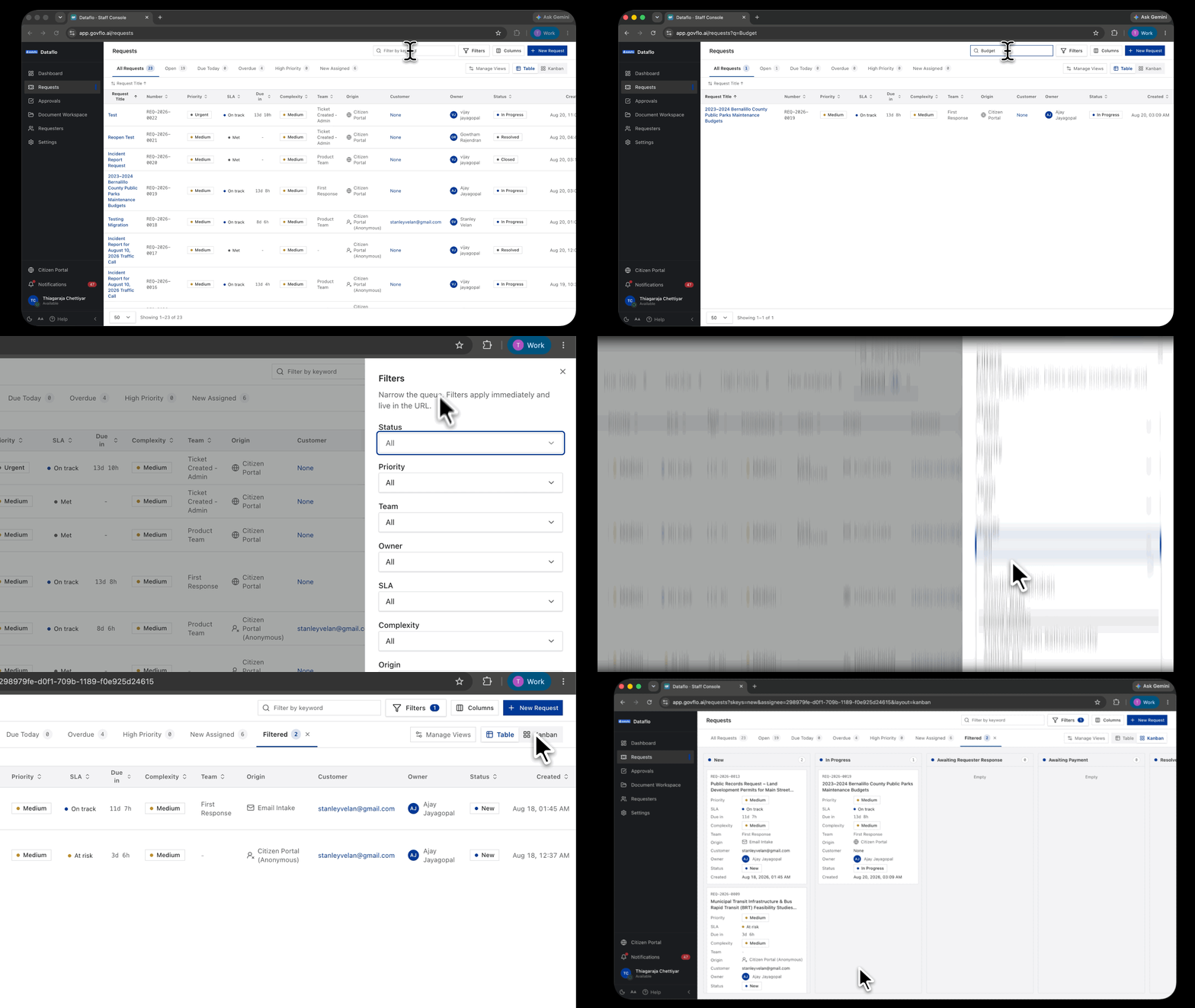
- Go to Requests.
- To search, type into Filter by keyword at the top. It matches the request title and the reference number.
- To narrow instead of search, click Filters. The panel opens on the right.
- Set any of the facets. Each one narrows the result further, so they combine rather than replace one another.
- Close the panel. The queue updates as you go; there is no Apply button.
- Click a request title to open it.
What each filter narrows to
- Status. The statuses your agency has configured.
- Priority. Your agency's urgency levels.
- Team. The team the request is routed to.
- Owner. Who it belongs to. Set this to yourself for your own work.
- SLA. On track, at risk, or overdue.
- Complexity. How much work the request is expected to take.
- Origin. How it arrived, for example Citizen Portal or Email Intake.
- Created. An inclusive date range.
Reset all clears everything at once.
Your filters live in the address bar
Every filter you set is written into the page URL. That has three useful consequences. You can bookmark a filtered queue and come back to it. You can send the link to a colleague and they will see exactly what you see. And refreshing never loses your place.
It also means you do not need a saved view for something you only need once. Filter, copy the URL, send it.
Choosing your columns
Columns lets you decide which fields the table shows. Turn off what you do not use and the rows get easier to scan. This is a personal setting and does not change what anyone else sees.
Table view and Kanban view
Table gives one row per request with sortable columns. It is better for scanning many requests at once, and for comparing deadlines.
Kanban groups requests into columns by status. It is better for seeing where work is piling up, and which stage is the bottleneck.
Click any column header in Table view to sort by it. The layout you choose is held in the URL along with your filters, so a shared link opens the same way for whoever receives it.
Views
The tabs above the table are views. All Requests is the one every agency starts with. A view is a filter combination someone has saved and named, so switching tabs is a shortcut to a queue you use often.
Manage Views is where views are renamed and removed. To create one, see Creating and managing a saved view.
Paging through results
The list pages forwards and backwards rather than jumping to a numbered page, and the page size control sits at the bottom left. This keeps results stable while colleagues are creating and updating requests at the same time, so a request will not quietly shift onto another page while you are reading.