Outbound email: sender identity, signature and threading
Last updated: August 27, 2026
This screen sets who your email comes from and how citizen replies find their way back onto the request.
How to configure it
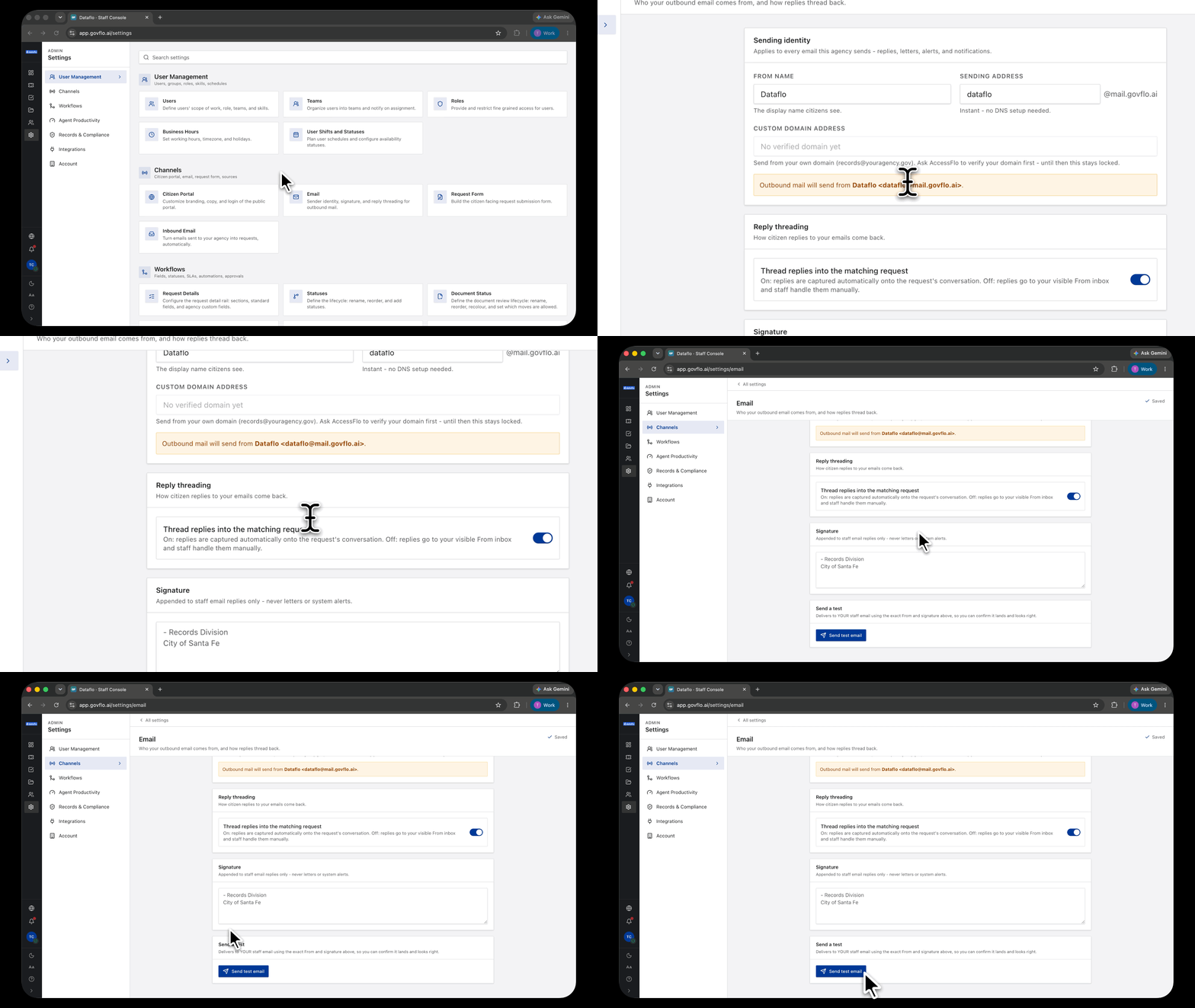
- Go to Settings, then Channels, then Email.
- Set the From name, which is the display name citizens see.
- Set the Sending address.
- Set Thread replies into the matching request.
- Write your Signature.
- Click Send test email to deliver one to your own staff address using the exact From and signature.
Send the test. It is the only way to see what a citizen actually receives.
Two kinds of sending address
The default is an address on Govflo's own mail domain. It works instantly with no DNS setup.
A custom domain address lets you send from your own domain, such as records@youragency.gov. It stays locked until your domain has been verified, which is a request to your Govflo contact rather than something you can do here.
Get the custom domain done before go-live if you can. Public records correspondence arriving from an unfamiliar domain looks like phishing to exactly the people most careful about email, and some agency mail systems will treat it that way.
Reply threading is the setting that matters
On, citizen replies are captured automatically onto the request's conversation, so the whole exchange stays on the record.
Off, replies go to your visible From inbox and staff handle them by hand.
Leave it on. A reply sitting in a shared mailbox is a reply that is not on the request, which means it is not in the audit trail, not visible to whoever picks the request up next, and not part of the account you can give of how the request was handled.
The signature applies to staff replies only
It is appended to replies an officer writes. It is never added to letters or system alerts, which use their own templates.
Keep it short and factual: the office, the contact route, and any statutory notice your agency includes. A long signature on every reply in a thirty-message exchange becomes most of the thread.
This is separate from the templates
This screen sets the identity and the signature. The wording of each automatic email lives under Settings, then Agent Productivity, then Email Templates.