Manage automated email notifications
Last updated: August 27, 2026
Notifications are configured as a matrix. For each event Govflo can raise, you decide whether it appears in the app, whether it is emailed, and who receives it. There is no single switch that turns notifications on or off.
How to configure a notification
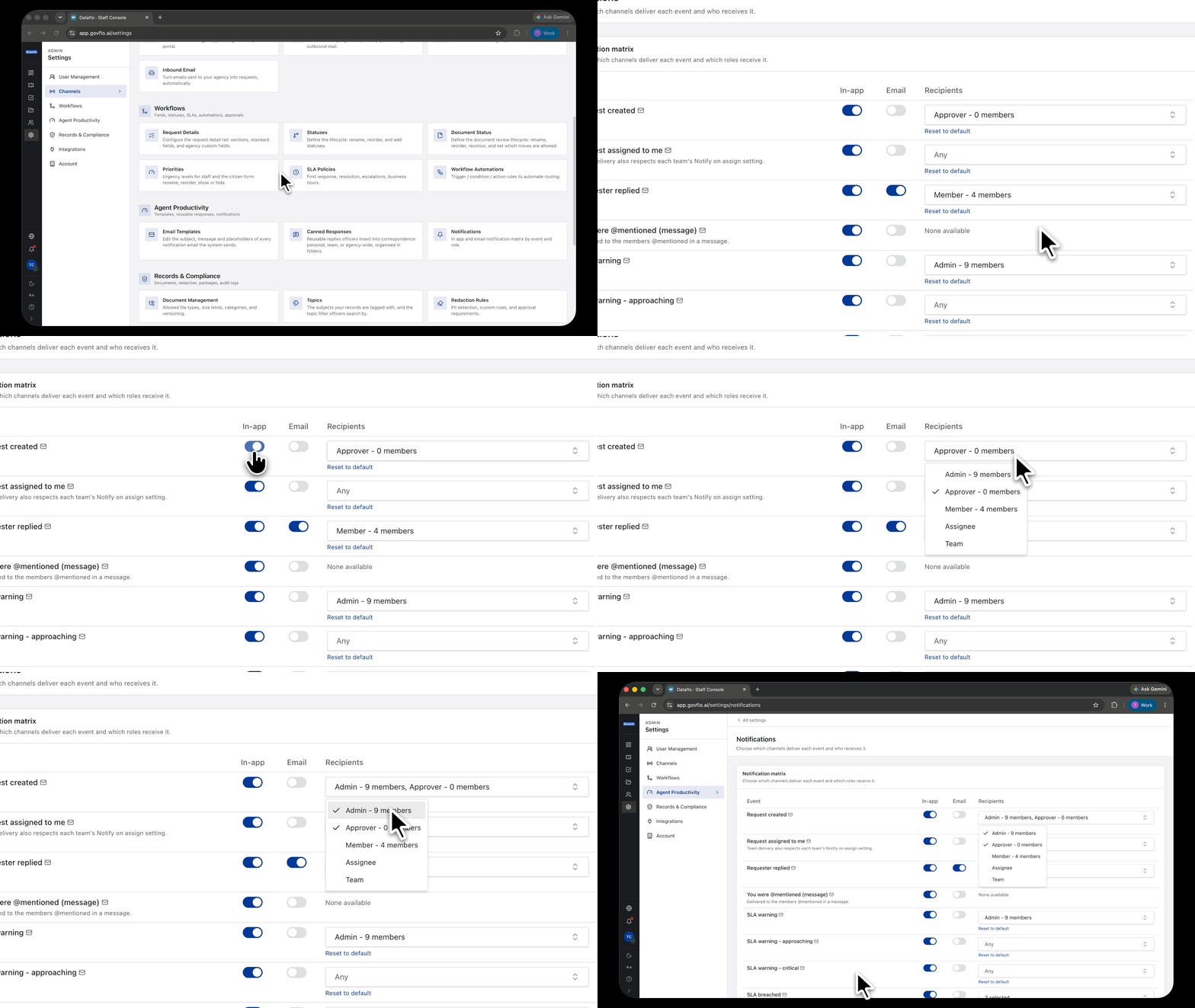
- Go to Settings, then Agent Productivity, then Notifications.
- Find the event you want to change.
- Set whether it appears in-app, by email, or both.
- Choose the recipients.
Changes take effect for events raised afterwards. A notification already sent is not recalled or resent because the configuration later changed.
The two channels
In-app appears in the notification bell in the sidebar with an unread count. Selecting one opens what it refers to.
Email goes to the configured recipients when the event happens, or is held for the digest.
Not every event supports both. A few concern the requester rather than staff, such as a document becoming available to download. There is no requester-facing bell, so the in-app option for those is disabled rather than left available and silently doing nothing.
Recipients are role-based and vary by event
An event is not sent to everyone by default. Recipients are chosen from roles that mean something for that specific event: the person assigned to the request, that request's team, the reviewer an approval is waiting on, or the audience set on a matched SLA policy.
Which roles are even offered differs by event, so a role with no bearing on an event cannot be attached to it.
The digest
Lower-urgency email can be batched into a daily or weekly digest instead of sending as each event occurs. Digests are generated on a fixed schedule per agency, in the agency's own time zone.
Use the digest for anything that does not need an immediate response. The purpose of a notification is to make someone act, and an inbox that always contains twenty Govflo emails makes people act on none of them.
What generates a notification
The events the product already tracks: a request created, assigned or replied to; an SLA warning, breach or escalation; an approval requested, decided or commented on; a redaction analysis completed; a discovery run finishing or failing; a document assigned; and an automation acting or escalating.
This screen does not create events. It decides how the ones that already happen are delivered.