Workflow automations and escalation paths
Last updated: August 21, 2026
Automations run rules against requests without anyone triggering them. Use them for the patterns you can describe: routing on arrival, and escalating when work stalls.
How to create a rule
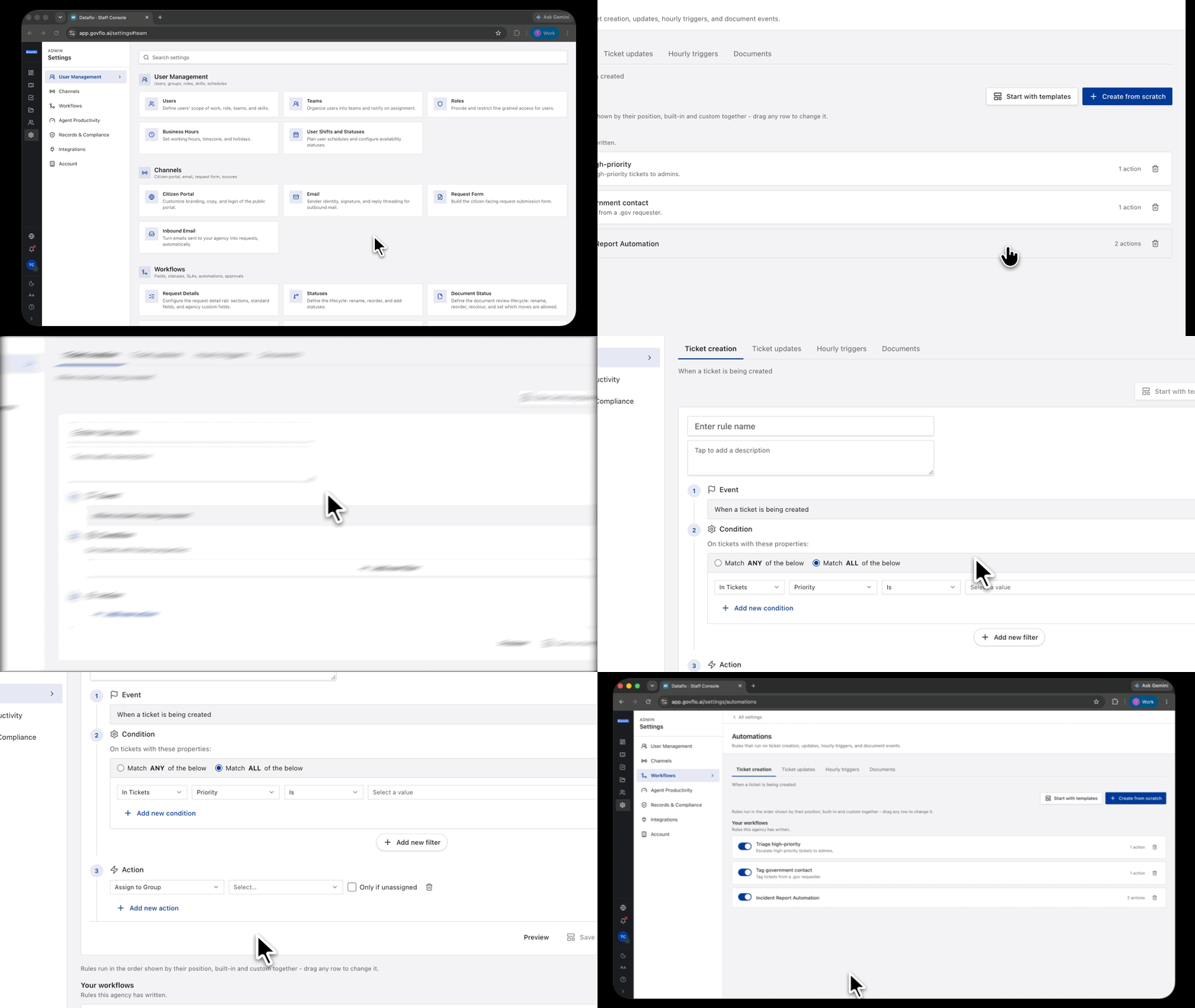
- Go to Settings, then Workflows, then Workflow Automations.
- Choose when the rule runs: Ticket creation, Ticket updates, or Hourly triggers.
- Click Start with templates to begin from a worked example, or Create from scratch.
- Set the conditions that decide whether the rule applies.
- Set the actions it takes.
- Save. The rule appears in the list for that trigger.
The three trigger types
Ticket creation runs as soon as a request is created. Routing belongs here, because it closes the gap between arrival and ownership.
Ticket updates runs when a request changes. Use it for reactions: a status change that should notify someone, a priority change that should reassign.
Hourly triggers runs on a schedule. Use it for conditions that become true through the passage of time rather than anyone's action, which is where most escalation rules belong.
Rules run in order
Rules for a trigger run sequentially, top to bottom. Put specific rules above general ones. A catch-all rule that assigns a default owner should be last, or it will claim requests the more specific rules were meant to handle.
Start from a template
Start with templates gives working examples rather than an empty rule. The starters include triaging high-priority requests to administrators, and tagging requests from a .gov address. Both show the right shape: a condition you can state plainly, and one action.
Building an escalation path
An escalation path is what happens when work stalls: who is told, in what order, and after how long. There are two places to build one, and they cover different failures.
SLA escalations, under Settings, then Workflows, then SLA Policies, fire when a deadline is breached and run in levels.
Automations fire on any condition you define, whether or not a deadline is involved. Use these for a request unassigned after an hour, a high-priority request with no owner, or an approval sitting undecided.
Three rules of thumb:
- Escalate to a team, not a person. An escalation aimed at someone on leave goes nowhere, and nobody notices it went nowhere.
- Escalate in levels. The owner, then their team, then a supervisor, with enough time between them to act.
- Prefer actions that change the queue. Notification is the weakest action, because it depends on someone reading it. Raising priority or reassigning changes what the queue looks like, which works even when nobody reads their email.
Keep each rule small
One condition and one action is easier to reason about than a rule doing four things. When something routes unexpectedly you have to work out which rule did it, and a list of small rules reads far faster than a short list of complicated ones.
What to watch afterwards
A rule firing constantly is telling you about a capacity problem rather than about individual requests. If an escalation fires every day, the fix is upstream of the rule.